

Overview
Remote learning teaches your Tortuga Audio preamp the actual button codes from your own remote control, one control function at a time. You press a button, the preamp records what it received, and from then on that button performs that function.
This applies to V4 or later preamps running rev 220 or later firmware. Earlier V4 firmware used Apple remote pairing, which rev 220 replaced outright. You can find instructions on Apple remote pairing here.
The difference between the earlier “remote pairing” and the current “remote learning” is worth being clear about it: pairing never taught the preamp any codes. The preamp already knew the Apple remote’s codes, and pairing simply told it which Apple remote to listen to, by ID number. Learning is the opposite approach — the preamp starts knowing nothing and learns whatever you teach it.
The practical result is that you are no longer limited to an Apple remote. Any remote using the NEC protocol will work, which covers the large majority of remotes, including inexpensive universal and replacement remotes.
Pairing vs. learning at a glance
| Pairing (old) | Learning (new) | |
|---|---|---|
| What the preamp knows up front | Apple’s button codes, built in | Nothing |
| What the process does | Selects which remote ID to obey (there are 256 possible remote ID codes) | Records your remote’s actual codes |
| Remotes supported | Apple remote (and legacy Tortuga remote) | Most NEC-protocol remotes |
| Buttons you control | Fixed by the remote’s layout | You choose which button does what |
| Separate pairing step | Required | Not needed — see below |
| If you lose the remote | Pair the replacement | Teach the replacement |
Do I still need to pair my remote?
No. From V4 rev 220 onward there is no pairing step at all — learning already does the job pairing used to do.
Do I need to learn my remote?
If you have a V4 based preamp/controller with firmware version 220 or later, you need to let your preamp learn your remote if it doesn’t already.
How does my preamp learn my remote?
Tortuga Audio uses infrared remotes that use the NEC protocol. The NEC protocol sends four bytes per button press. Taken as a set, those 4 bytes represent a unique and specific control function that we associate with that 4 byte code. While in learning mode, the preamp takes whatever 4 byte code sequence it receives when you press a button and saves it in permanent memory as being associated with the current control function. A different remote — even an identical make and model — may send a code with a different embedded ID in which case the code doesn’t match and the preamp ignores it.
What you need
- A remote that uses the NEC infrared protocol. Most do.
- A few minutes. Teaching all thirteen functions takes only a few minutes and is something you’ll rarely need to do.
You do not need to teach every function. Teach only the ones you want. Any function you skip simply does nothing when the preamp is used with that remote, and you can come back and add it later.
The learnable functions
There are thirteen learnable functions patterned after the Function101 remote but these functions can be assigned to any button on any NEC protocol remote. Seven of these functions are the same as the Apple remote. The rest are for menu navigation and convenience.
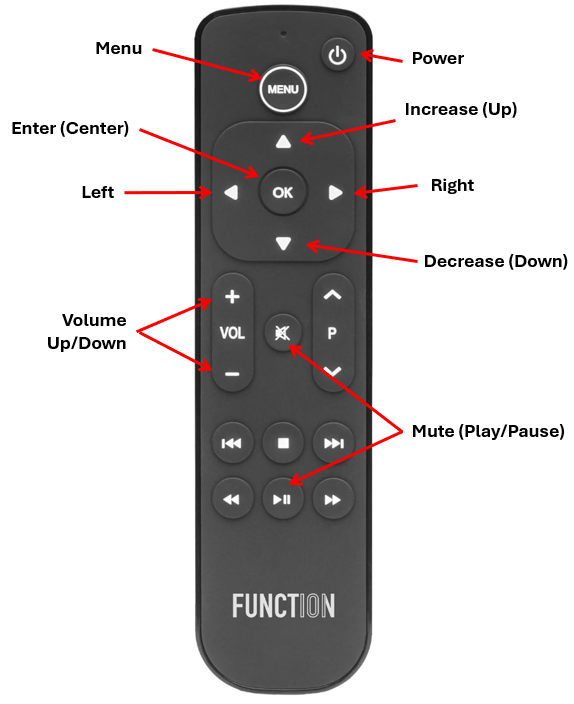
| Function | What it does |
|---|---|
| Power | Turns the preamp on and off |
| Mute | Mutes and unmutes |
| Raise | Volume up, and moves up within a menu (Apple) |
| Lower | Volume down, and moves down within a menu (Apple) |
| Menu | Toggles between menu navigation and control mode (Apple) |
| Enter | Selects the highlighted menu item (Apple) |
| Left | Moves left within a menu (Apple) |
| Right | Moves right within a menu (Apple) |
| Play | Mode / secondary action (starts the cal process when Cal function is selected) (Apple) |
| Vol+ | Volume up only, regardless of what’s on screen (slower than Raise) |
| Vol- | Volume down only, regardless of what’s on screen (slower than Lower) |
| Pup | Jumps straight to the next input, from any screen |
| Pdown | Jumps straight to the previous input, from any screen |
Raise and Lower double as volume control, so Vol+ and Vol- are optional. They’re there for remotes with a dedicated volume rocker, so that volume still works while you happen to be sitting in a menu.
Switching inputs with a single button
Pup and Pdown are worth calling out, because they remove a long-standing annoyance. Until now, changing inputs from the remote meant one of two things:
- Navigating into the Input menu, selecting, and backing out again, or
- Changing the Volume Control Mode option so that turning the encoder changes inputs instead of channel balance — which then costs you the balance adjustment
Teach a button to Pup or Pdown and input switching becomes a single press from wherever you happen to be. The display jumps to the input screen, steps to the next or previous input, and that’s it. No menu, no mode change, and channel balance stays on the encoder where it belongs.
The buttons are named after the P^ and Pv keys on the Function101 remote, which is where we expect most owners will put them, but any button on any learnable remote can be taught to these functions.
The one place they deliberately do nothing is during calibration, so a stray press can’t disturb a cal run in progress.
Teaching a code
- Enter the menu and scroll down to Learn, then press Enter. The display shows the first learnable function.
- Turn the encoder to select the function you want to teach. You can move to any function in any order simply by rotating the encoder.
- Press the button on your remote three times that you want to associate with the currently selected control function. The three presses have to be the same button. Watch the match count climb on the display.
- On the third match the code is saved automatically and the status changes to “GOOD”. Nothing else to confirm.
- Turn the encoder to the next function and repeat.
- Quick press/release on the encoder pushbutton when finished will exit you from the learning control and return to the menu. At that point your remote is back in control of the preamp.
Codes are stored permanently and survive power off.
Why three presses
A single press is easy to get wrong — a stray button, a reflection off a wall, or a neighbouring device. Requiring three identical presses in a row means an accidental press can’t overwrite a function.
If you press the wrong button partway through, just start pressing the right one. The count restarts at one for the new button rather than failing the whole attempt, so you can settle on the button you actually meant.
What the display shows
Function: Power                                  Learn
Code: 77 E1 40 BF
Match count: 3 | good| Line | Meaning |
|---|---|
| Function | Which function you are currently teaching |
| Code | The four bytes stored for it, in hex. ---- means nothing learned yet |
| Match count | How many identical presses so far, out of the three needed |
| Status | good once a code is stored, off while the function is still unlearned |
If you press a button and nothing on the screen changes — for example pressing the same button again once a function is already learned — the display flashes to confirm the press was received.
Those four bytes are the complete message the remote sent — what you see is exactly what was received, which makes this screen useful for telling one remote apart from another.
Using a Function101 remote
The Function101 Button Remote is a common choice, and it has a quirk worth understanding before you start teaching buttons.
It is really two remotes in one housing. Most of its buttons — Menu, the navigation arrows, OK, Play/Pause and the transport keys — send Apple TV codes. A smaller group — Volume +, Volume –, Mute and Power — send codes for whatever TV, soundbar or receiver you program the remote to, chosen from over a hundred brands.
That matters if you have an Apple TV in the same room. Buttons in the Apple group will operate your Apple TV as well as your preamp, because they are genuinely sending Apple’s codes and the Apple TV has every right to answer.
Avoiding the conflict
Because the preamp learns whatever code you give it, there is a clean way around this:
- Put the remote into setup mode (Menu + OK, held about 3 seconds).
- Program its TV section to a brand you do not own — anything not present in your system.
- Teach the preamp Volume +, Volume –, Mute and Power from that section.
Those four buttons now transmit codes that nothing else in the room responds to. They control the preamp and only the preamp.
That covers the four functions you reach for most. Menu navigation still uses Apple-coded buttons, so if you have an Apple TV nearby, menu work is better done with the front panel encoder. Everyday listening — power, mute, volume — is conflict free.
Troubleshooting
The match count won’t climb past one.
The presses aren’t decoding identically. Try pressing more deliberately, with a short pause between presses, and aim the remote squarely at the front panel.
Nothing happens at all when I press a button.
The remote is most likely not using the NEC protocol. Check that it works at normal range and that its batteries are good; if another NEC remote learns normally, the first remote isn’t compatible.
Some buttons send two codes.
Certain remotes transmit a second, differently coded message a few milliseconds after the first. The preamp ignores anything arriving that quickly while learning, so this is handled for you and no action is needed.
A learned button does the wrong thing.
The same physical button was probably taught to two functions. Return to Learn, select the function you don’t want, and teach it a different button.
